
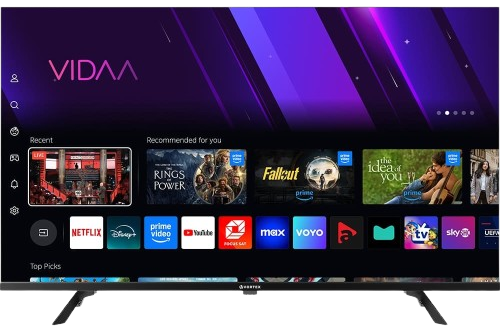
Step 1 – Download the Correct App
BY popular demands, there was no way I would have forgotten about our non-android Smart TV devices. For this example, we’re using an LG Smart TV with WebOS. For other devices like Samsung or Toshiba, steps are basically the same.
Go to your Samsung or LG App Store.
Search for “Ibo Player”.

 Important: There are many fake versions of this app.
Make Sur to download from official app stores
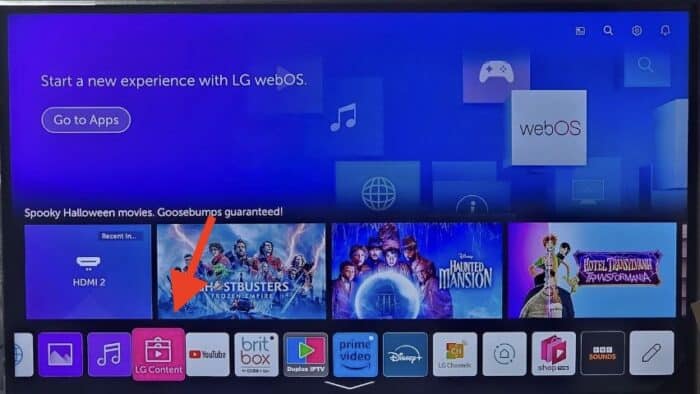
1- Open LG Content Store.
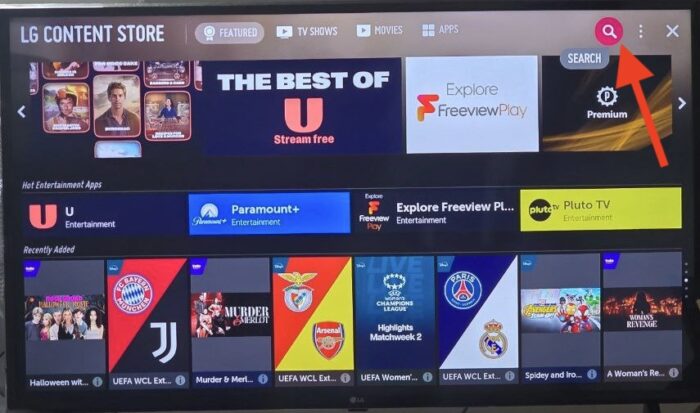
2- From the top right corner, click the magnifier icon to search.

3- Type-in IBO Player to look for this app.

4- In the results, choose the right application as shown above. You might see other variations with similar names, disregard them and only focus on “Ibo Player”.

5- Click Install to initiate the installation.

6- Select Launch to open up IBO player.

7- After a successful installation, a welcome message will pop up for the first time.
- You will need the Mac address and activation code in order to add the playlist.
1. Open the App Store on your device and search for Vu Player Pro.

2. Within the Vu Player Pro app, go to the settings or profile section, You will find your Mac Address and Device Code displayed within the app.
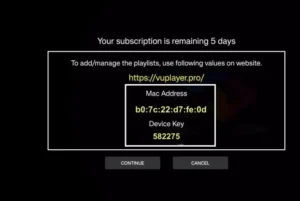
3. Now go to the website: https://vuplayer.pro/login
and enter the Mac address (Device ID) and the device key (Device Key).
4. Select the M3u link or Xtream code to upload your data. The data will be sent to your email address.
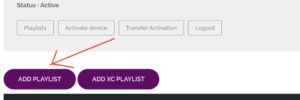
5. Restart your app and enjoy!
1. Open the App Store on your device and search for Hot Player.

2. Within the Hot Player app, go to the settings or profile section, You will find your Mac Address displayed within the app.
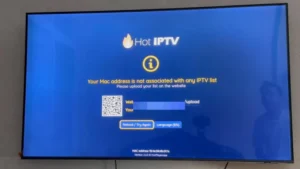
3. Now go to the website: https://hotplayer.app/upload
And enter the Mac address (Device ID).
4. Select the M3u link to upload your data. The data will be sent to your email address.
5. Restart your app and enjoy!
1. Install Set TV from the App Store on your Smart TV.

2. Open the IPTV Player app and put a checkmark under the MAC address displayed on the screen.
3. Go to the SetIPTV activation page and enter your MAC address.
https://setsysteme.com/set.app
4. Enter the MAC address and click the pound icon to confirm.
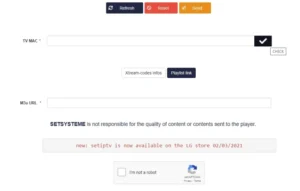
5. After verification, enter the M3U URL associated with your IPTV provider.
6. Then click Submit to download the M3U URL to your device.
7. Relaunch the app and stream videos from your IPTV provider.
Step 1 – Download the Correct App
Go to your Samsung or LG App Store.
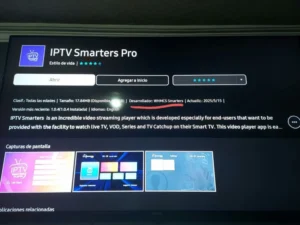
Search for “IPTV Smarters Pro”.
 Important: There are many fake versions of this app.
Make sure the Developer is WHMCS Smarters (see screenshot below).
Step 2 – Choose Login Method
When the app opens, select XTREAM Codes API (recommended).
This avoids entering long m3u links manually.
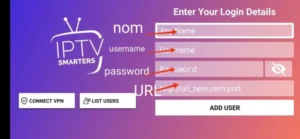
Step 3 – Enter Your Details
Fill in the login details we emailed you:
Playlist Name → You can type any name, e.g., MY TV
Username
Password
Server/Portal URL
Press ADD USER to connect.
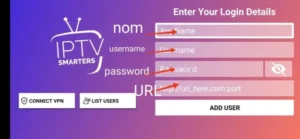
 You are now ready to start watching Live TV, Movies, and Series

How to install IBO Player on Android phones and tablets?
The installation on these devices is very easy since we have quick access to the browser and can easily download and install the file.

1- Either from IBO player official website or from our application download center, get the installation file.

2- No wonder why you are warned about this, the file is downloaded from outside of your android device app store. However it’s safe. Click Download Anyway.
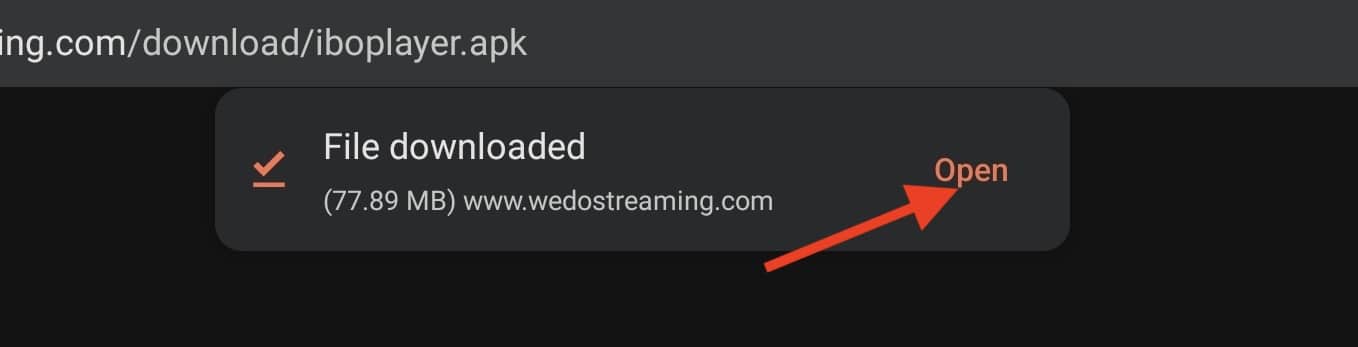
3- Open the file.
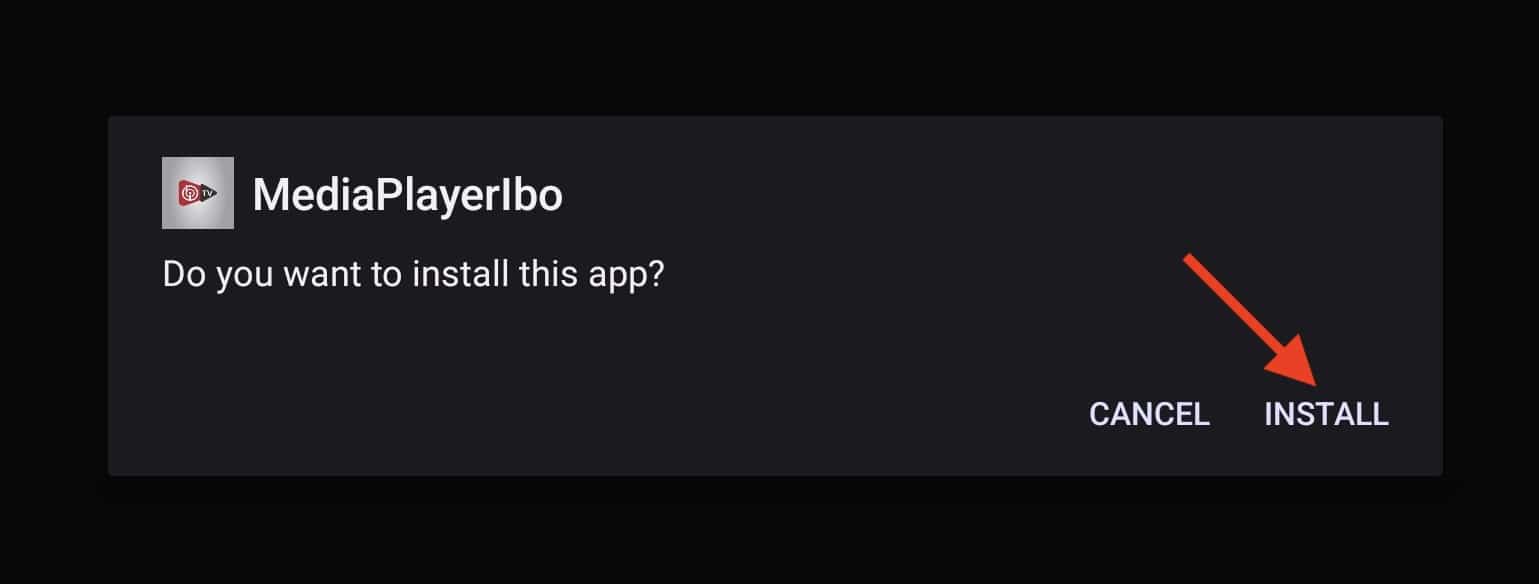
4- Click Install.

5- IBO Player is installed, now you can open it.
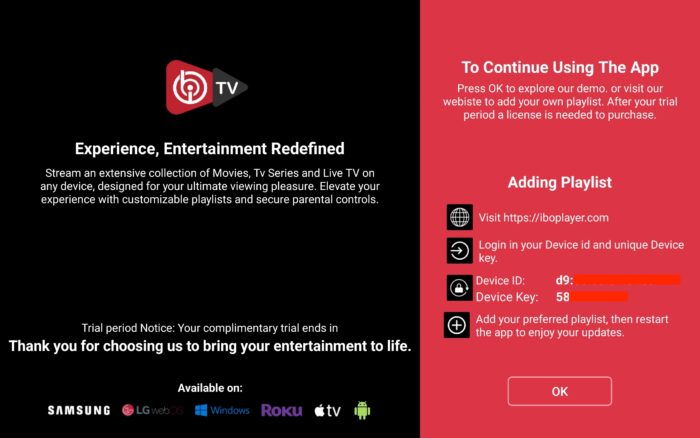
6- Right after opening the app for the first time, you will be presented with this introductory page. It’s actually very informative and clarifies what should be done. We will cover the playlist addition , just contact our support team.

7- It’s loaded and ready for action.
1. Open your Play Store and search for TiviMate IPTV Player.

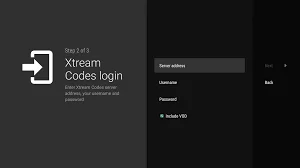
1. Open the Play Store on your device and search for Hot Player.
2. Within the Hot Player app, go to the settings or profile section, You will find your Mac Address displayed within the app.
3. Now go to the website: https://hotplayer.app/upload
And enter the Mac address (Device ID).
4. Select the M3u link to upload your data. The data will be sent to your email address.
5. Restart your app and enjoy!

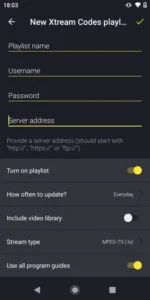
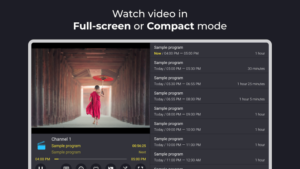
9xtream is a freemium app. It comes with ads, but you can remove them for €5 per year.
1. Open your Play Store and search for 9Xtream.

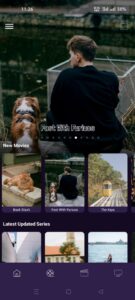
1. Open the App Store on your device and search for Vu Player Pro.
2. Within the Vu Player Pro app, go to the settings or profile section, You will find your Mac Address and Device Code displayed within the app.
3. Now go to the website: https://vuplayer.pro/login
and enter the Mac address (Device ID) and the device key (Device Key).
4. Select the M3u link or Xtream code to upload your data. The data will be sent to your email address.
5. Restart your app and enjoy!
1. Open the App Store on your device and search for Hot Player.
2. Within the Hot Player app, go to the settings or profile section, You will find your Mac Address displayed within the app.
3. Now go to the website: https://hotplayer.app/upload
And enter the Mac address (Device ID).
4. Select the M3u link to upload your data. The data will be sent to your email address.
5. Restart your app and enjoy!
The app itself is free to download and includes a wide array of playback and management features like global search, EPG, catch-up, picture-in-picture, downloads, VPN, parental lock, advanced playlist editing, and more — all without charge
1- Download the “UHF IPTV” app from the APP store.
2- Choose to connect with XTREAM codes API.
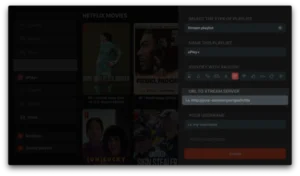
3- Enter your login details (Username, Password and URL) and press OK to connect.
Wait for the app to load the data, and enjoy streaming!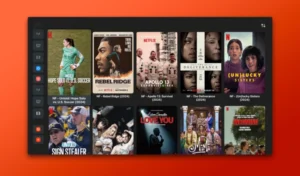
1- Download the IPTV Smarters Lite app from the APP store, make sure it’s the LITE version not Pro.

2- Choose to connect with XTREAM codes API to avoid entering all m3u files.
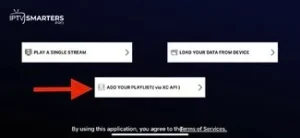
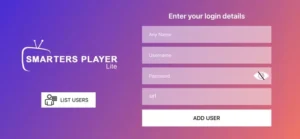
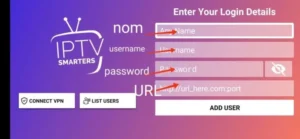
3- Enter your login details and press ADD USER to connect.
How to install IBO Player on macOS?
If you want to run IBO player on devices like Macbook or iMAC, you need to install the macOS version.

1- Open IBO Player official website and from their download section get the macOS version.

2- Open the downloaded file and then drag-and-drop the icon into the application folder.

3- After 10 seconds, IBO player is installed on your macOS. Open Launchpad and click the app icon.

4- As you can see, since we installed the app from outside of app store, launching it is rejected.
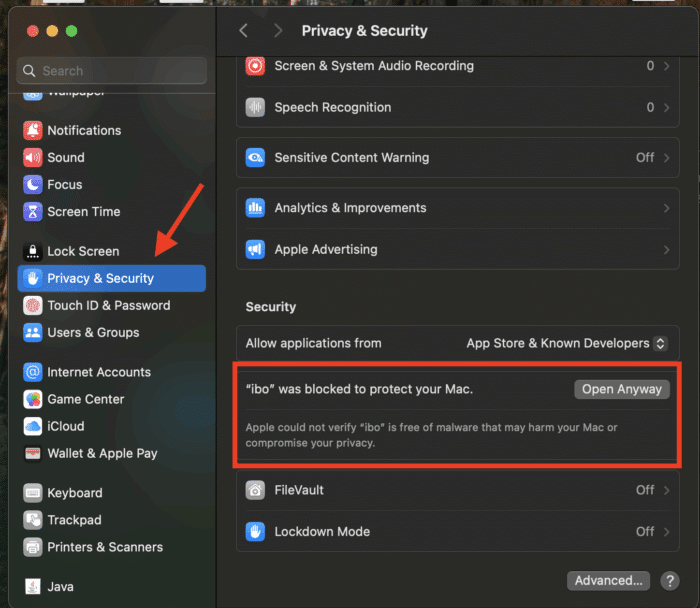
5- From the top left side on the toolbar, click the Apple icon, then choose System Settings. When it’s loaded, from left column, scroll down to Privacy & Security. Click that and from right side, scroll down until you see the application security section.
IBO Player is blocked and requires our manual intervention for launching. Click Open Anyway..

6- Choose Open Anyway. This choice is permanent and on later launch of the app it will open straightaway.

7- Application is ready for use. I will explain how to sort this later in this tutorial.
How to install IBO Player on LG and Samsung TV?
BY popular demands, there was no way I would have forgotten about our non-android Smart TV devices. For this example, we’re using an LG Smart TV with WebOS. For other devices like Samsung or Toshiba, steps are basically the same.
1- Open LG Content Store.
2- From the top right corner, click the magnifier icon to search.
3- Type-in IBO Player to look for this app.
4- In the results, choose the right application as shown above. You might see other variations with similar names, disregard them and only focus on “Ibo Player”.
5- Click Install to initiate the installation.
6- Select Launch to open up IBO player.
7- After a successful installation, a welcome message will pop up for the first time. Follow the guide below to add a playlist.
How to install IBO Player on Windows?
If you have a Windows PC, that’s laptop or any personal computer, you can also utilize this application for your streaming purposes. Key note is that it only works on Windows 10 and above and the file provided is for 64 bit systems.

1- First of all, download the windows installer. We do provide links for that both from IBO dev website and our host.

2- Windows security should pop up and stop the installation as the file is downloaded from our side the Microsoft store. Click More Info.

3- Now you can proceed with installation of IBO Player. Click Run Anyway.

4- Click Next.

5- If you want, tick the checkbox to have an icon of the app on the dashboard, then click Next.

6- Finalize the installation by clicking Install.

7- Click finish to open the IBO Player app.
1. Open the App Store on your device and search for Vu Player Pro.
2. Within the Vu Player Pro app, go to the settings or profile section, You will find your Mac Address and Device Code displayed within the app.
3. Now go to the website: https://vuplayer.pro/login
and enter the Mac address (Device ID) and the device key (Device Key).
4. Select the M3u link or Xtream code to upload your data. The data will be sent to your email address.
5. Restart your app and enjoy!
1. Open the App Store on your device and search for Hot Player.
2. Within the Hot Player app, go to the settings or profile section, You will find your Mac Address displayed within the app.
3. Now go to the website: https://hotplayer.app/upload
And enter the Mac address (Device ID).
4. Select the M3u link to upload your data. The data will be sent to your email address.
5. Restart your app and enjoy!
1- Open your Chrome, Firefox or Apple Safari browser and go to this link: https://iptvstreamplayer.com/
2- Depending on your PC (Mac, Windows, etc.), click “Download” and wait for the download to complete. Then install the app.
3- Now open the app and click on “Log in with a new user account”.
4- Enter your login details and press Login to connect.
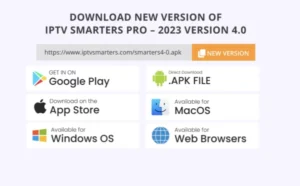
1- Open your Chrome, Firefox or Apple Safari browser and go to this link: https://www.iptvsmarters.com
2- Depending on your PC (Mac, Windows, etc.), click “Download” and wait for the download to complete. Then install the app.
3- Enter your emailed login details and press ADD USER to connect.
Installing IBO Player on Amazon Fire TV Stick

1- From the dashboard of the Amazon Fire TV Stick, move over on the magnifier icon, then click down to highlight the search field. After that click OK.

2- We need to install an application called Downloader which enables us to side-load and install applications from outside of Amazon App Store. When the virtual keyboard pops up, click D. Then you should see the first suggestion as Downloader, move over to it and click OK.

3-Choose the app by selecting it. This will initiate the installation.
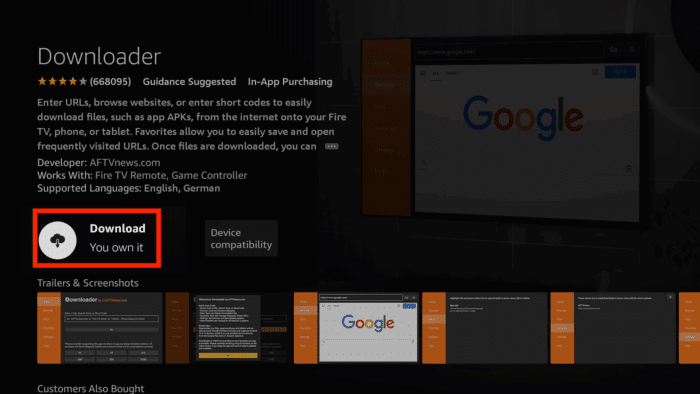
4- Fulfill this step by clicking Download.

5- A pop up message should show up prompting you to grant media access to Downloader. Click Allow.

6- Once the app is loaded. Move the selection to the search field on top of yellow Go button and press OK on the remote.

7- The official Downloader code for IBO Player android version is 511693. Type this in and click Go.

8- IBO Player is being downloaded from the official website. You can also notice that from the left column, we are now on Browser section. Do not touch anything until this step sorts itself.

9- Wait while download is in progress.

10- Amazon security bumps the installation since the file is from out side of amazon app store. We need to enable the installation permission for Downloader. Click Settings.

11- Click Install Unknown Apps.
Note: If you do not see the above section and Developer option is not visible, move the selection on About and press OK button on the remote 7 times. After that Developer Options should appear. Then select it and follow the steps.
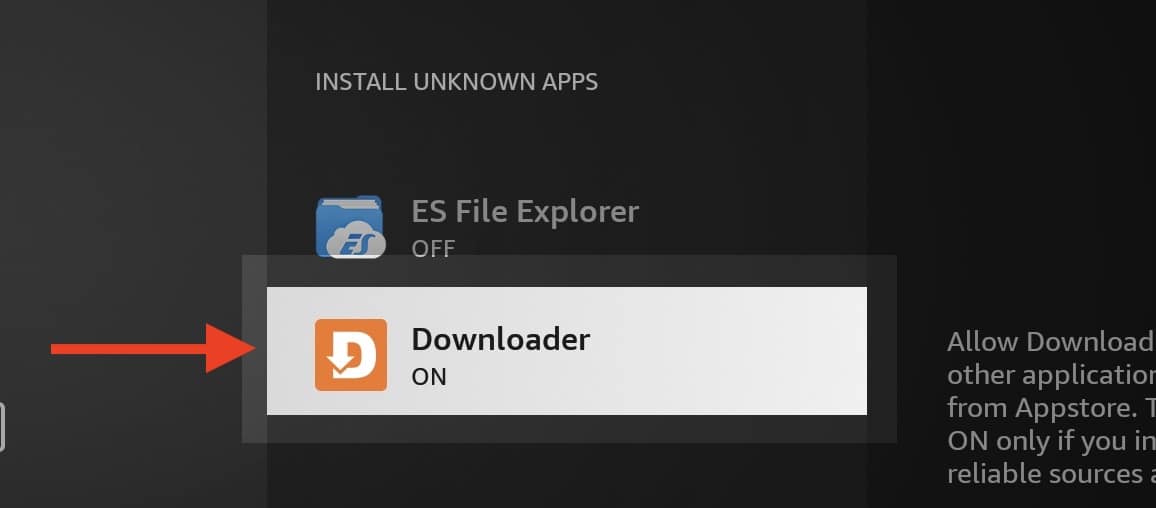
12- Select Downloader and click OK button so the OFF changes to ON.

13- Now we can proceed with installation of IBO player on Fire Stick which is pretty normal with few Next and OK.

14- Once the app is installed, above should be the first message popping. Click OK.

15- App is ready.
1. We first install the Downloader app
This app will help you download IPTV Smarter on FireStick (because browser downloads are not allowed).
2. click on the Search > Search Option on the FireStick home screen
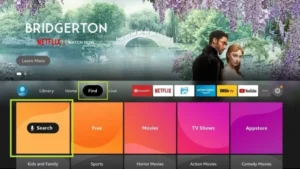
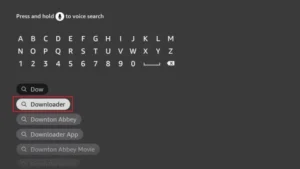
3. Enter the name of the application (this is Downloader)
click on the Downloader option when displayed in search results
Choose the one Downloader icon on the following screen and download and install the app.
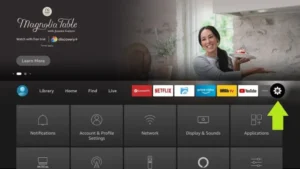
4. After installing the downloader app, return to the FireStick home screen
Click in the menu bar Settings.
5. In Settings, select the option My Fire TV.
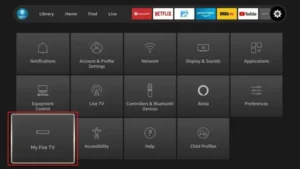
6. When the following options appear on the next screen, click Developer options
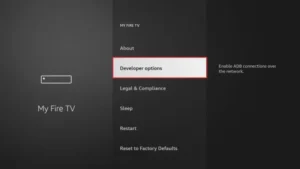
7. click on Install from unknown applications.
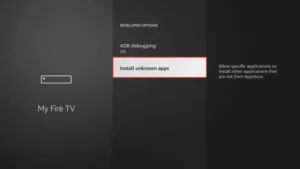
8. click on Downloader to change the status to ON
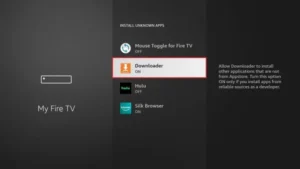
You have now configured the FireStick settings so that the installation of IPTV smarters and other third-party apps is possible. Follow the steps below:
9. You can now see Downloader app!
When you first launch this application, you will see a series of prompts. Ignore these until you see the following screen
In this screen you need to click on the URL text box on the right side (make sure Home page option is selected in the left menu) where it says ‘http://’
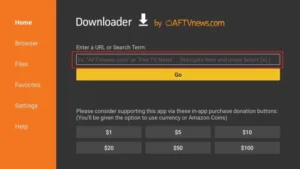
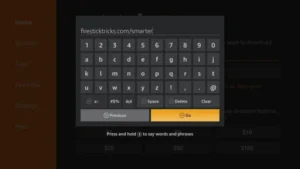
10. In this window, enter the following code: 6468112
click on GO
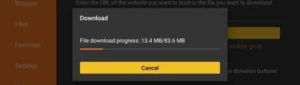
11. Wait a minute or two for the IPTV Smarter to download on your FireStick.
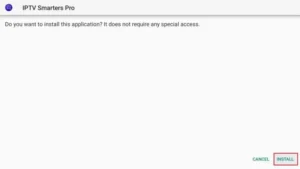
12. When the download is complete, the downloader app will run the APK file and the installation will begin.
click on Install
13. Wait for the installation to complete.
14. The installation is completed with this App installed Report
You can now click OPEN and get started with IPTV Smarters
I recommend choosing DONE so you can first delete the APK file to save storage space on FireStick.
15. Choose to connect with XTREAM codes API to avoid entering all m3u files.
16- Enter your emailed login details and press ADD USER to connect.
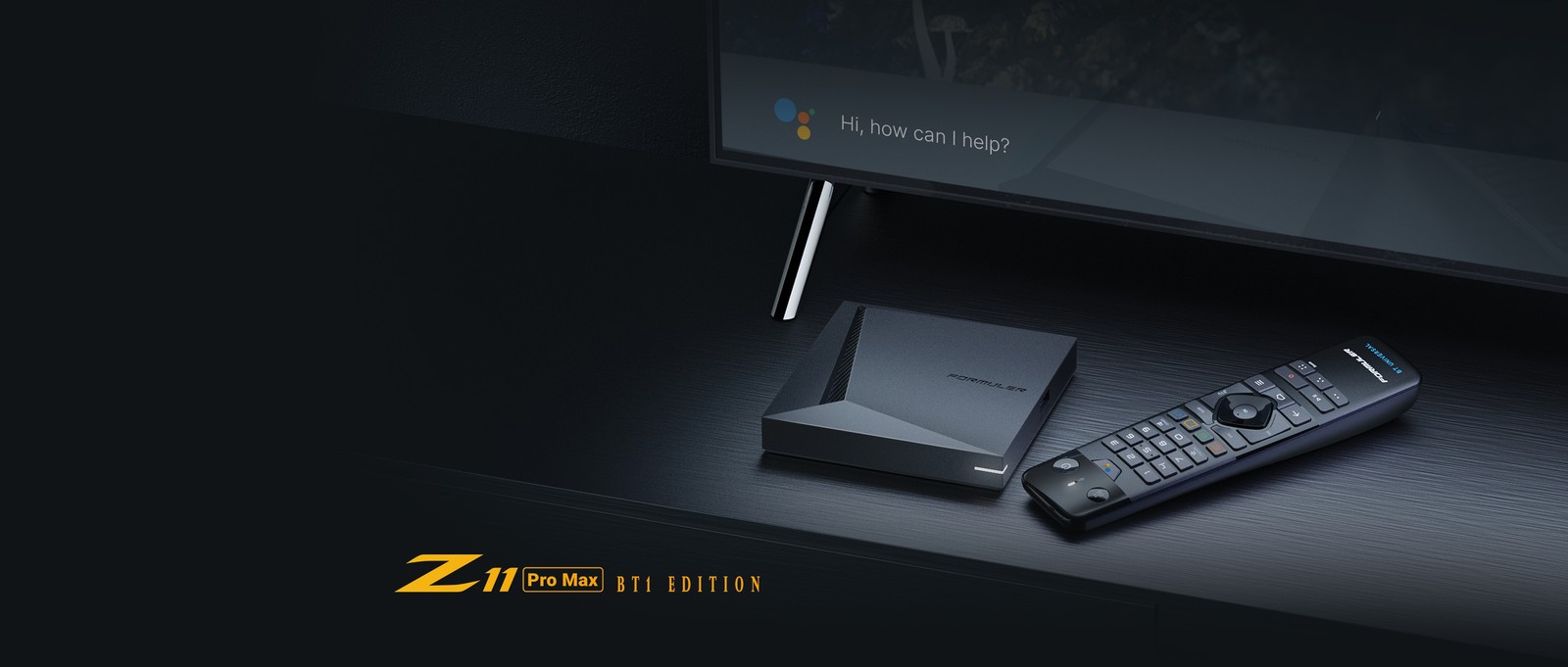
1. Go to the back of your Formuler Z where the Mac ID is indicated.
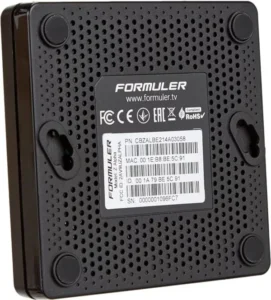
2. Make sure you provide us with the Mac ID when ordering your package. Mac ID usually starts with 00:1A…
You can also find it on the MyTvOnline app.
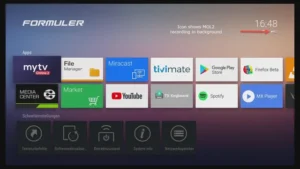
3. Once we receive your order with the Mac ID, we will send you the portal URL. Make sure to enter the portal URL in the MyTvOnline app (no username or password required).
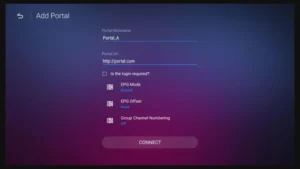
1. Go to the back of your Mag where the Mac ID (Or Mac Address) is indicated.
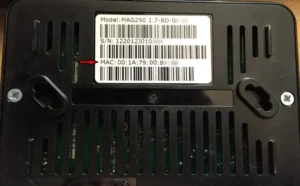
2. Make sure you provide us with the Mac ID when ordering your package. The Mac ID usually starts with 00:1A….
3. Go to Settings, then System Settings, then Servers, Then Portal.
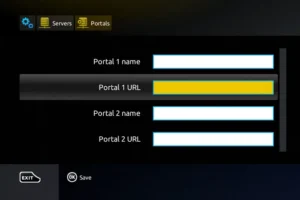
4. Enter the portal URL that we emailed you.
After completing all the above steps, press “EXIT” on the remote twice to restart the gate. Now everything is ready to watch live TV…